
How to Set Up Two-Factor Authentication for Facebook

Updated: Aug 12
Protect your facebook account
In this article, I'll show you how you can easily protect your personal Facebook account with two-factor authentication (2FA).

Content Table
Why should I set up a 2-factor authentication for facebook?
With 2-factor authentication (2FA), you protect your personal Facebook account by using an additional code that you must enter when logging in.
You need 2FA for your personal Facebook account because it will later become mandatory for your Meta Business Manager.
This protects your Facebook profile and your advertising account from unauthorized access by third parties.
You also protect yourself from your personal account being mistakenly suspended.
This often happens when you:
Log in from multiple devices.
Log in from a different country.
Or log in after a long period of time.
What are the options for the 2-factor authentication?
There are 4 ways to get the 2FA-codes:
Via SMS.
Via Authenticator-App (recommended).
Via USB-stick.
Via Backup-Code.
Save your backup codes in a safe place.
My recommendation: Use Google Authenticator with time-based codes.
How do I set up a 2-factor authentication via authenticator app for Facebook?
Download the authenticator-app and install it.
Log into Facebook.
Click on your profile in the top right corner and select “Settings and Privacy”.

Choose "Settings" one more time.
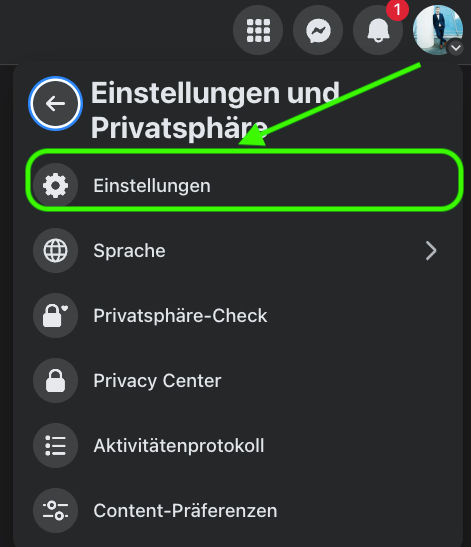
Next you choose the "account overview".

In the account overview choose "Password and security" and then 2-factor authentication.

Choose your facebook profile that you want to secure.

Choose your preferred method. In this case the authentication-app.

You will now receive a code and a QR code from Facebook, which you must enter into your 2FA app on your phone.
Important: Do not close your Facebook app at this point, otherwise the code will expire and you will have to restart the process.
In your 2FA app, you must now give the code a name. However, this is internal and only for you to distinguish your codes.
If this has worked, you will now see an entry in the 2FA app with a time-based, 6-digit code.
You must now enter this 6-digit code on Facebook.
You will then receive a confirmation and a list of backup codes:
IMPORTANT: Save these backup codes in a safe place that you can access if you no longer have access to your cell phone. The best place is in the cloud. You will need these codes as a replacement if you cannot retrieve a code.
Done!
How do I set up two-factor authentication via SMS or WhatsApp for Facebook?
To do this, follow the initial steps described in the previous section up to step 7, so that you end up in the two-factor authentication menu:
Then select “SMS or WhatsApp”.
Next, enter your cell phone number.
You will then receive a code via SMS or WhatsApp.
Enter this code in Instagram.
Done!
How does the 2-factor-authentification work on Instagram?
Setting up 2FA for Instagram works exactly the same way as it does for Facebook.
This is also highly recommended.
On Instagram, you should set up 2FA immediately after creating an account, especially if you’re a social media manager who regularly creates Instagram accounts for clients.
If your Instagram account appears in the account overview on Facebook, simply select your Instagram account instead of your Facebook profile when choosing a profile.
Alternatively, you can access the account overview directly through the Instagram app:
Open your Instagram app and go to your profile.

Select your profile and go to settings.

Select the account overview.
From here on, follow the steps outlined in this section.
Another verification method:
On Instagram, you also have the option to send verification requests to devices that are already logged into your account (trusted devices). You can easily turn this feature on or off in your settings.
New in 2026: Passkeys
Okay, Passkeys have been around for a while, but they’re now increasingly required as a verification method.
Passkeys serve as an alternative to passwords and use biometric data—such as your fingerprint or a facial scan—that’s stored on your device.
Here’s how to create a passkey:
Tap Settings and Privacy.
Tap Settings.
Tap Account Overview.
Tap Password & Security.
Tap Passkey.
Tap Create Passkey.
Follow the steps to set up your passkey.
Done!
Note: Do not create a passkey on a public or shared device.
You can now set passkeys as mandatory for all members in the Security Center of your Meta Business Portfolio.
You can find the official guidelines for passkeys here.
You need help setting up the 2-factor authentication for facebook?
Reach out to me now.


Comments