
How to Add Assets and Users to Meta Business Manager

Updated: Aug 12

You can manage users and assets in your Meta Business Manager.
All components of your Business Manager are called “assets.” This includes ad accounts, Meta Pixel, Facebook Pages, and Instagram accounts.
Find out how to set up your Meta Business Manager.
Adding Users: This is how you give access to the Business Manager
Here, you can invite users who should have access to Meta Business Manager along with you. You can add individual people, external partners such as agencies or freelancers, or system users.
As soon as you click on a menu item, you'll always see in the left column which individuals or partners currently have access to your Meta Business Manager. In the right column you can see what assets somebody has access to.
How to add people to the Meta Business Manager:
Click on the blue button: “+ Invite people”.

In the pop-up window, enter the email address of the person you want to invite.
Important: The invited person must have this email address stored in the contact information of their accounts center.
Not publicly in their profile!

Once you have entered the email address, you can assign access rights to the person.

You can choose between limited and unlimited control.
Limited control means that the person can only edit the assets that have been assigned to them. They cannot add or remove anyone from Business Manager. This is useful for employees and external parties.
Unrestricted control is admin access. This access should only be given to key employees.
In addition, you can also grant rights for financial management. This is useful for accounting.
Next, the assets must be assigned. This point is confusing for many people. There are three columns here: asset types, assets, and the respective permissions. You can only proceed here if you select an asset and then permissions for each business asset type you select:
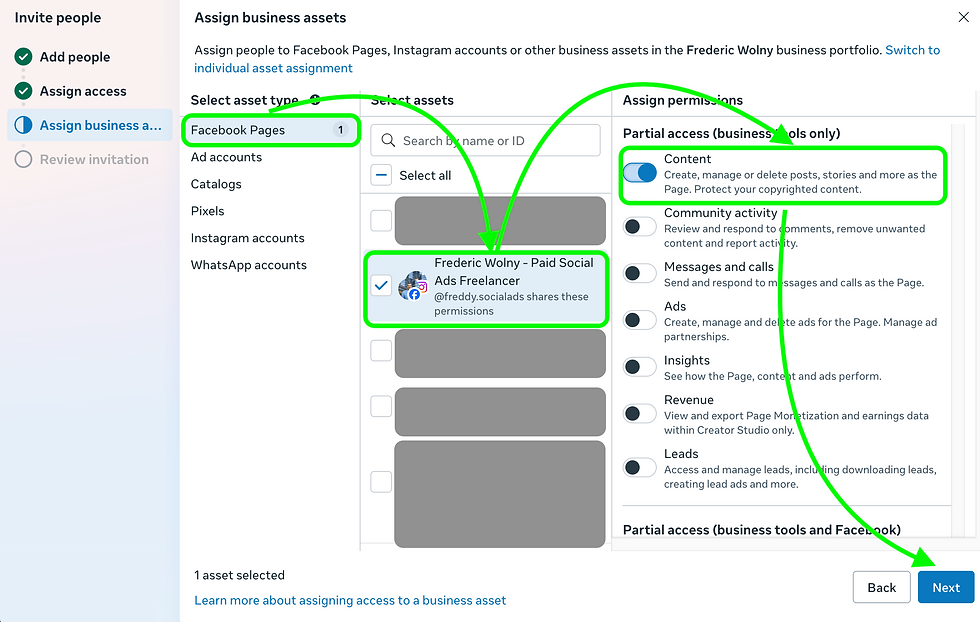
Now go through all the asset types. If you have forgotten anything, the “Continue” button will be grayed out.
Finally, you need to review and send the invitation.
How to add partners to the Meta Business Manager:
To grant a partner access to your Meta Business Manager, two conditions must be met. Your partner must have a Meta Business Manager account, and you need their Business Portfolio ID. You can find this in the company information.
Here’s how to add a partner:
Go to Users/Partners and click the blue “+Add” button.

Now select “Allow a partner to access your assets”. Here, you can also request access to a partner’s assets.

Now enter your partner’s Business Portfolio ID.

Select the assets to which your partner should have access.
Your partner will now receive an access request via email.
Once your partner has accepted your access request, they will appear as a partner in your partner list.
Done!
How to add system users to the Meta Business Manager:
System users are essentially technical accounts that allow servers or software to automatically access data and features in your Business Manager—for example, via APIs.
Note: Not all companies have access to system users.
In the Users tab in the left sidebar, select System Users.
Click Add New System User.
Set a name for the system user and click Create System User.
Assign assets to the system user.
Click Generate New Token.
Select your app and permissions, then click Generate Token.
Copy and save your token.
Keep in mind that you can only share a token once. Each new system user requires a newly generated token.
Done!
Find more information here.
Additional security measures
If you change the access rights for individuals, you will usually have to verify your own email address again for security reasons.
Adding or deleting an individual often has to be confirmed by a second administrator. That's why you always need at least two administrators in Business Manager.
FAQ on Access and Control:
I received an invitation to Meta Business Manager. What should I do next?
It’s simple:
Go to your email inbox.
Open the invitation.
Click on the link in the invitation.
Facebook will open in your browser.
If you aren’t logged in yet, you’ll need to log in to Facebook now.
Then you’ll need to specify the name and email address you want to be visible with internally in Business Manager.
Done. The Business Portfolio will appear in your selection.
Can I revoke someone’s access?
Yes, if you have admin rights:
Go to the Users/People section.
Search for the person you want.
In the name bar, you’ll find the menu (...) on the right side.
In this menu, you can remove permissions or completely remove the person from Business Manager.
Can I revoke my own access or leave a Business Manager?
Yes, you can.
To do this, you need to select yourself under People and click on the three dots on the right. There you will find the "Leave Business Portfolio" option.
However, this only works if you have admin rights.
If you don't have admin rights, you can click on "Leave Business Portfolio" under Business Info.
How do I ad Assets to the Meta Business Manager?
Adding pages
This refers to your Facebook pages. If you already have a Facebook page, you can claim it in the Pages section.
To do this, simply click on the blue button: “+ Add.”
You can choose one of these 3 options:
Add an existing Facebook Page
If you want to claim an existing page, simply search for the page’s name and then claim it.
There are two things to keep in mind:
Each Facebook Page can only be assigned to one Business Manager.
You need admin rights for the Facebook Page.
If either of these conditions is not met, you will receive an error message. Facebook will tell you what is missing.
So, if you want to transfer the existing Facebook Page to the new Business Manager, you also need access to the Business Manager to which the Facebook Page is currently assigned.
Request access to a Facebook Page
This option is useful for agencies that want to manage Facebook Pages for their clients. Access to the Facebook Page is granted, but it remains linked to the original Business Manager.
Create a new Facebook Page
If there isn’t already a Facebook Page for your business, you can simply create a new one here.
Each ad account needs a Facebook page in order to run ads on Facebook.
Adding Ad accounts
The heart of your Meta Business Manager. This is where you’ll create and manage campaigns later on.
Here, you can claim existing ad accounts or create a new one.
To do this, simply click the blue “+ Add” button
Then choose whether you want to add an existing ad account, request access, or create a new ad account.
Important: Once an ad account has been created, it cannot be moved. So always use Business Manager to create an ad account only for the person who is supposed to be the account owner.
FAQ on ad accounts:
Can I move an existing ad account from one business manager to another?
No, that is not possible.
Where can I see the current limit of ad accounts in the business manager?
You can see this under “Company Info.” Your limit increases gradually as you spend more on advertising.
Closed and suspended advertising accounts are also included in this total.
How do I log into the Meta Ads Manager (Facebook Ads Manager)?
There is no separate login for the Ads Manager.
You log into the Meta Business Manager with your personal Facebook profile. You will automatically have access to all connected Ad accounts you have.
Adding business asset groups
With Business Asset Groups, you can group and organize your assets in Business Manager—just as the name suggests.
Instead of granting each user individual access to every asset, you can grant users access to an entire group with a single click.
The benefit: You save time, avoid errors, and always keep track of who has access to what.
Especially in larger setups, with multiple clients, or when collaborating with agencies, Business Asset Groups are a key component for clean and scalable structures.
However, this feature is rarely used in practice.
Adding Instagram-accounts
This refers to your Instagram accounts. If you already have an Instagram account, you can simply add it in BM.
To do so, just click on the blue button: “+ Add”, accept the Meta guidelines, and log in to Instagram.
After successfully logging in, your account will appear in the overview.
Your advertising account needs an Instagram account to run ads on Instagram.
Where can you add your Threads account to the Meta Business Manager?

You don't need to connect your Threads account separately. If you created your Threads profile via your Instagram account, it should be automatically connected.
You can tell this is the case if you can select your Threads account in the Ads Manager at the ad level.
If the drop-down menu does not appear yet, the feature has not been rolled out to you yet.
You can only run ads on Threads if you have a Threads account connected.
Adding WhatsApp-accounts
You can now easily add WhatsApp Business accounts to your BM.
To do so, simply click on the blue button: “+ Add”.
You can choose whether you want to add an existing account or create a new one.
A confirmation code will be sent to your WAB, which you must enter in the BM, and you're done.
If you have a WhatsApp account connected, you can run Click-to-WhatsApp ads.
How can I add a payment Method to the Meta Business Manager?
In addition to the advertising account, you will of course need a payment method, as mentioned above. You can add this in the “Billing and Payments” section.
Under Accounts, you can add a payment method to your advertising account.
Under Payment Methods, you can also add a payment method centrally in your BM and use it for multiple advertising accounts in your BM.
For most use cases, however, one payment method at the account level is sufficient.
Important: Use either PayPal or a credit card, never direct debit.
How can I add a data source (Meta pixel) to the Meta Business Manager?
You can send data to Meta in various ways. The most common data source is the Meta Pixel (Facebook Pixel). It allows you to track conversions on your website.
This forms the foundation for most campaigns on Meta, such as lead generation and sales campaigns.
I always recommend using the Meta Pixel if you have a website.
Only with properly functioning tracking can you measure the performance of your Meta campaigns.
Here you can find out how to install the Meta Pixel on your website.
Later, you will manage your Meta Pixel and your events in the Meta Events Manager.
Further settings
You can also add business asset groups, commerce accounts, and apps. However, these settings are probably less relevant to you at this stage.
Connecting Assets
Connecting your Facebook page with your Instagram account
An important detail that is often forgotten: you still need to connect your Facebook page to your Instagram account.
This is how you connect your Facebook page with your Instagram account
Do you need help setting up your Meta Business Manager?

If you need help adding assets to your meta business manager, just let me know. As a 2x Meta-certified media planner, I’ve done this hundreds of times.
I’ll guide you through every step professionally:


Comments